Tracking your habits is one of the most effective ways to build consistency. A spreadsheet gives you full control over what you measure and how you score it, but getting the formulas, conditional formatting, and streak tracking right takes serious time. If you would rather skip the trial and error, our habit tracker Excel template has everything pre-built and ready to use in 60 seconds.
In this guide, you will learn what goes into a professional habit tracker: how to structure your data, what formulas power the key metrics, and how conditional formatting turns numbers into a visual dashboard. By the end, you will know exactly what a good tracker needs, and you can either build it yourself or grab the pre-built Habit Tracker template with everything already configured.
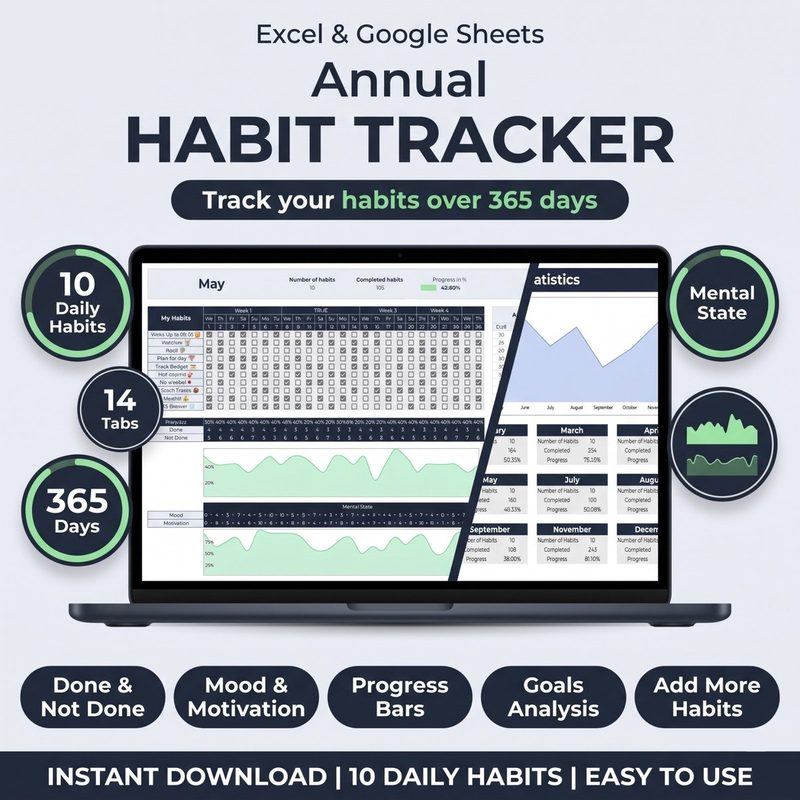
The Habit Tracker for Excel & Google Sheets includes all formulas, conditional formatting, streak tracking, and dashboard, pre-built and ready to use. Start tracking in 60 seconds instead of spending hours on formulas.
Get the Template · $10Why Use a Spreadsheet for Habit Tracking?
Before we dive into the build, here's why a spreadsheet beats most dedicated habit tracking apps:
- Full control. You decide what to track and how to score it. No app dictating a rigid format.
- One-time setup. Build it once, reuse it forever. No monthly subscriptions.
- Works everywhere. Excel on desktop, Google Sheets on your phone: your tracker goes where you go.
- Data analysis built in. Ready for charts, pivot tables, or export to any other tool.
- Zero distractions. No notifications, no social features, no upsells. Just you and your data.
If you want to design your tracking system exactly the way you think, a spreadsheet is the best foundation you can choose.
What You'll Need
To follow along, you'll need Microsoft Excel (2016 or later) or a free Google account for Google Sheets. If you're not sure which to use, start with Google Sheets: it's free, runs in your browser, and has a solid mobile app for check-ins on the go.
Step 1: Set Up Your Sheet Structure
Open a new spreadsheet and name the first sheet "Tracker." Here's the layout:
- Column A: Date (one row per day)
- Column B: Day of the week
- Columns C through G (or more): One column per habit
- Column H (or last habit + 1): Daily score (percentage of habits completed)
- Column I (or last + 2): Notes or journal for the day
Set up your header row like this:
A1: Date B1: Day C1: Exercise D1: Read E1: Meditate F1: Drink Water G1: Score H1: Notes
Feel free to swap in your own habits: aim for 4 to 8 habits per sheet. More than that becomes overwhelming. Less than 3 feels too sparse to generate meaningful data.
Filling in the Dates
Instead of typing every date manually, use a formula. In cell A2, enter the start date (e.g., 6/1/2026). Then in A3, enter:
=A2 + 1
Drag that formula down to fill 30, 60, or 90 days. For Google Sheets, the same formula works. To auto-fill the day of the week, enter this in B2:
=TEXT(A2, "dddd")
In Excel, the same TEXT function works identically. Drag this down alongside your dates.
Step 2: Build Your Tracking Input System
The core of your habit tracker is a simple binary input: did you do the habit or not? Use 1 for completed and 0 (or blank) for not completed. You could use checkboxes, but 1s and 0s make it trivially easy to write formulas later for counts, averages, and streaks.
The Habit Tracker template includes conditional formatting pre-applied: green cells show wins, red shows misses, and the daily score column has a color scale, ready to use from the moment you open the file.
Step 3: Write the Scoring Formulas
This is where your habit tracker comes alive, but it is also where the complexity hides. A professional tracker needs four types of formulas working together:
- Daily score: Calculates your completion percentage across all habits for a single day. Must handle empty cells (no data entered yet) without showing errors.
- Weekly average: Rolls up daily scores into Monday-through-Sunday windows. Requires date-math logic that automatically adjusts to the current week, no manual range updates.
- Streak counter: Finds the longest consecutive run of completed days for each habit. This is the most technically demanding formula: it uses array logic to identify breaks in the sequence and calculate the gaps between them.
- Monthly completion rate: Filters all days in a given month and calculates what percentage of them each habit was completed. Requires
SUMPRODUCTwith nested date and year conditions.
Each of these formulas needs to work across both Excel and Google Sheets, and the array-based streak formulas behave differently between the two platforms. Getting them all correct, edge cases included, typically takes 30 to 60 minutes of trial and error.
Every formula mentioned above is already built and tested in the Habit Tracker template. Daily score, weekly average, streak counter, monthly rate, all pre-configured for Excel and Google Sheets. No debugging, no YouTube tutorials, just your data.
Step 4: Add Conditional Formatting for Instant Visual Feedback
Conditional formatting transforms your grid of 1s and 0s into a color-coded dashboard you can read at a glance. A well-configured tracker uses at least three formatting rules:
- Green highlight for completed habits (cells containing "1")
- Red highlight for missed habits (blank cells on past dates)
- Color scale for the daily score column (green at 100%, yellow at 50%, red at 0%)
Setting each rule requires navigating through conditional formatting menus, writing formula-based conditions (especially for the missed-habits rule, which needs to check both the cell value and the date in column A), and making sure the rules apply in the correct priority order. The template has all six formatting rules pre-applied and tested.
Step 5: Add a Weekly Summary Section
Daily tracking is great for logging, but weekly summaries are where you spot trends. A summary sheet pulls data from your tracker using cross-sheet references: it averages daily scores for each week, organizes them into a year-long table, and feeds a line chart so you can see which habits peak and dip across the months.
Building this requires AVERAGEIFS with date-range conditions that reference the tracker sheet, plus proper absolute references so you can drag the formula across multiple habits and weeks. The Habit Tracker template includes a pre-built Summary sheet with the chart already populated.
Step 6: Mobile-Friendly Data Entry Hacks
A habit tracker only works if you actually use it, and most check-ins happen on your phone. Here are a few tricks for painless mobile entry:
- Data validation. For each habit column, add data validation that only accepts 1 or 0. In Google Sheets, use "Checkbox" for an even easier tap-to-toggle.
- Freeze your header row. View → Freeze → 1 row. Your habit names stay visible as you scroll to today's date.
- Pin the sheet to your home screen. In Google Sheets, tap the three-dot menu and select "Add to Home screen."
Step 7: Review and Iterate
Schedule a 15-minute review at the end of each month:
- Look at your weekly averages: which habits have the highest and lowest completion rates?
- Check your streaks: are you losing momentum on a specific day of the week?
- Adjust your habit list. If you never check a particular habit, remove it. If you have room, add one.
The real power of tracking isn't the numbers: it's the awareness they create. When you see a red cell, you are reminded that tomorrow is a fresh chance. When you see a long green streak, you want to protect it.
Take the Next Step
You now know what a professional habit tracker needs: structured data, solid formulas, conditional formatting, streak tracking, and a monthly overview. Getting all of that working across Excel and Google Sheets takes hours of trial and error, or you can use the Habit Tracker for Excel & Google Sheets and start tracking in the next 5 minutes.
All formulas are pre-built. Conditional formatting is pre-applied. Streaks, weekly averages, monthly rates, all calculated automatically. One payment, lifetime access, works on both platforms.